From an empty folder to a spirograph, with the debugger from the very first run
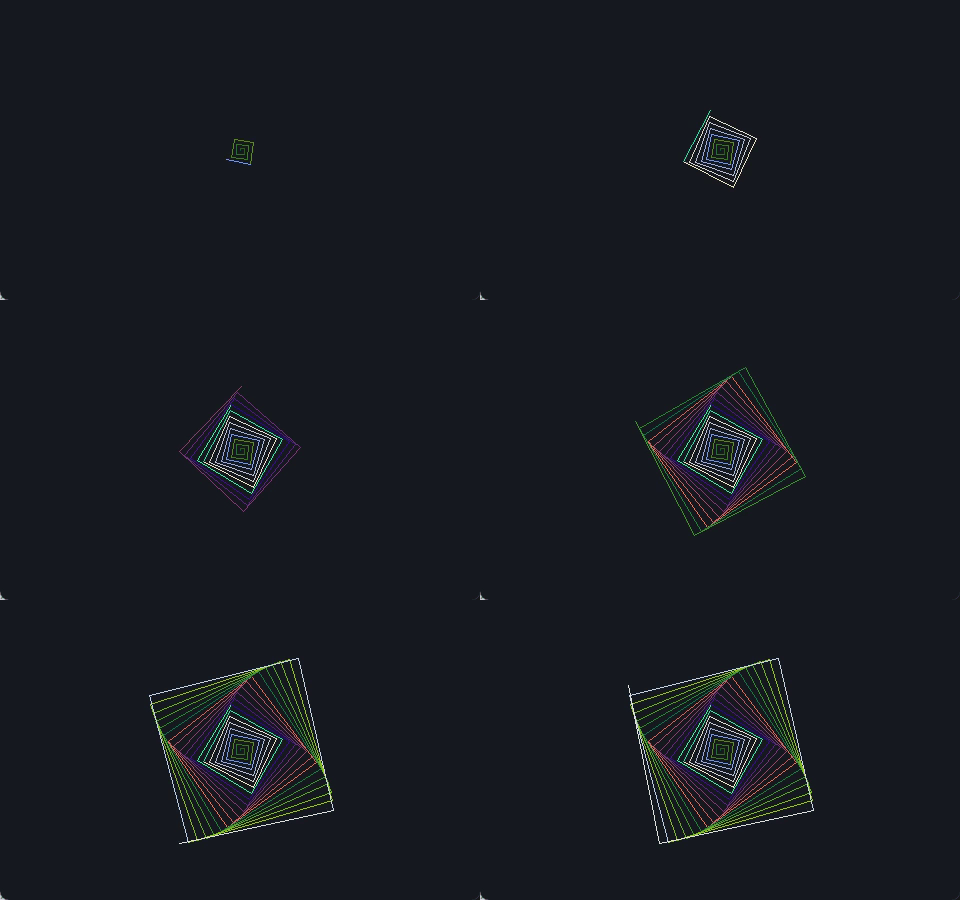
By the end of this you will have written a real Shoddy program: a turtle that draws the spiral in the corner of this page. It is split into a tested pure core and a thin window shell (one part only computes, one part only shows), with build scripts that work on anyone's machine. You will run it in the debugger from the fourth section onward, not as an advanced topic at the end, but as the way to see what each line does. You will hunt down a bug with it, and finish by putting the whole drawing under keyboard control.
It takes about an hour, and nothing is assumed: not Shoddy, not VS Code, not any other language. Every click is spelled out.
The route: 1. Before you start · 2. A folder and a file · 3. Your first line on screen · 4. Meet the debugger · 5. The turtle is a value · 6. A square: Fold is REPEAT · 7. A spiral · 8. Colour, and a Def of your own · 9. Split it: core and shell · 10. A test that runs anywhere · 11. A bug hunt · 12. Keys and an event loop · 13. Build files · 14. Three warnings you'll meet · 15. Run it, don't weave it · 16. Challenges · 17. Where next
Keys Where this page says Ctrl+R, it means Ctrl on every platform, Mac included. That shortcut belongs to the Shoddy extension, which uses the same key everywhere. VS Code's own shortcuts do follow the usual convention: Cmd+S to save on a Mac, Ctrl+S on Windows and Linux. Both are written out each time.
Open VS Code and check the extension is there: click the
Extensions icon in the left-hand Activity Bar (the four-squares
icon), type shoddy into the search box, and confirm it shows as
installed. If it is not, do Setup, Track
A first (it takes two minutes), then come back. If VS Code offered a
Reload button after installing, click it before going on.
Shoddy programs live in ordinary folders. Nothing needs to be in a particular directory and there is no project file to create, so make one wherever you keep your own work.
On Windows: in VS Code choose File → Open Folder…. In the
dialog, go to your Documents folder, click New folder in
the toolbar, type spiro and press Enter to name it, then, with
it selected, click Select Folder.
On macOS: choose File → Open Folder…. In the dialog, go to
Documents, click the New Folder button at the bottom-left,
type spiro, click Create, then click Open.
First time VS Code may ask "Do you trust the authors of the files in this folder?". That is its safety prompt for folders it has not seen before. This is your own new empty folder, so choose Yes, I trust the authors. In Restricted Mode the extension cannot run your programs.
Now make the file. In the Explorer panel on the left (the top
Activity Bar icon, two stacked pages), hover over the row that says
SPIRO and click the New File… icon (a page with a small plus).
Type spiro.shoddy and press Enter.
The name matters in exactly one way: the .shoddy ending is
what tells VS Code to use the Shoddy extension. You should see Shoddy
in the blue status bar along the bottom of the window, towards the
right.
Type this into the file:
Include "turtle.shoddy"

Def Main()
    Let t = NewTurtle(400, 400)
    Let drawn = Forward(t, 120)
    Let shown = Blit(drawn)
Then save it: Ctrl+S on Windows and Linux, Cmd+S on a Mac. VS Code does not save on its own, and a dot beside the filename in its tab means there are unsaved changes.
Indentation The three indented
lines use four spaces each. Indentation is not decoration in Shoddy. It is
how the language knows those lines belong to Main. There is no
end, no braces, no semicolons. Press Tab and the extension puts
in spaces for you.
Press Ctrl+R.
A window opens with a single line drawn up its middle. Close it when you have looked at it. The program has already finished. The window is only waiting for you.
Two other ways to run the same thing, for when you forget the shortcut: the ▶ button at the top-right of the editor, and right-click in the code → Run File. That right-click menu also offers Weave File, Build Machine and Show Generated C#, which we will meet later.
Anything the program prints, and any warnings, appears in the Terminal panel at the bottom. If it is not showing, open it with Ctrl+` (the backtick key above Tab, the same on every platform) or View → Terminal.
Six lines, and four things worth knowing:
Include "turtle.shoddy" pulls in the
turtle machine, one of the
libraries Shoddy calls machines. The bare name works from any
folder on your disk because the machines ship inside the extension. Nothing
to install, no path to set.Def Main() is where every Shoddy program starts.Let names a value. It is not a variable: it is a name for
one value, once. That is the whole language in one idea, and §5 is
about it.Blit is what puts the drawing on screen. Until you blit,
you have been drawing into memory.Most tutorials save the debugger for the end. We will use it now, because it is the fastest way to watch a program work, and Shoddy's needs no setting up at all.
With spiro.shoddy open, press F5.
The program starts and stops on its first line, which is highlighted. No
configuration file, nothing to pick from a list: the extension recognises
.shoddy and arranges it. (In mill vocabulary the debugger is the
perch, the place where woven cloth was inspected for flaws.)
Look at what appeared:
Now press F10 (Step Over) three times, slowly, watching
Variables → Locals after each press. One name appears at a time:
first t, then drawn, then shown. You
are watching the program build its values, one line at a time.
Here is the instinct nearly everyone brings from other languages. Change the middle of your program to this, save, and run it with Ctrl+R:
Def Main()
    Let t = NewTurtle(400, 400)
    Forward(t, 120)
    Forward(t, 120)
    Let shown = Blit(t)
The window is empty. And in the Terminal, a warning:
spiro.shoddy:4: warning: Def 'MAIN' leaves 2 values on the stack. A Def
    yields one value, or none
Nothing was changed. Forward does not move the
turtle. It hands back a new turtle that has moved, with the
line already drawn on it. Those two calls each made a turtle nobody kept,
and the t we blitted is still the blank one from
NewTurtle. Shoddy is purely functional: nothing, anywhere,
ever changes in place. Values go in, new values come out.
Do not take my word for it. Put the working version back:
Def Main()
    Let t = NewTurtle(400, 400)
    Let one = Forward(t, 120)
    Let two = Forward(TurnRight(one, 90), 120)
Let shown = Blit(two)t and
one both exist.t still sits where it started, and one has moved.
The original is still there, untouched.two joins them: three turtles alive at
once, each a snapshot of a moment in the drawing.That is the mental shift. In most languages you would have one turtle and change it. Here you get a new one at every step, and the old ones remain exactly as they were.
The linter That warning came from the linter, which runs on every program before anything executes and reports only what it can prove. It never stops your program. Get into the habit of reading the Terminal even when the window looks right. §14 collects the three warnings you are most likely to meet.
Four sides means doing the same thing four times. Shoddy has no
for loop, because a loop needs a counter that changes, and
nothing changes. What it has instead is Fold: start with a
value, run a function over a list, and let each result feed the next.
Def Main()
    Let t = NewTurtle(400, 400)
    Let square = Fold(Range(1, 4), t, Fn(t, i) => TurnRight(Forward(t, 120), 90))
    Let shown = Blit(square)
Range(1, 4) is the list 1 2 3 4.
Fn(t, i) => … is a small function written in place, taking
the turtle so far and the step number. Four sides, ninety degrees each, and
the turtle arrives home. If you ever wrote LOGO's
REPEAT 4 [FD 120 RT 90], this is that, with the pen made
explicit.
Let square = … line. A red dot appears: a
breakpoint.Fn.i in Locals. Press F5 to continue and
it comes back as 2, then 3, then 4: the same code four times, with a new
turtle each time.Two changes turn the square into a spiral: go a little further each time, and turn ninety-one degrees instead of ninety.
Def Main()
    Let t = NewTurtle(400, 400)
    Let spiral = Fold(Range(1, 160), t, Fn(t, i) => TurnRight(Forward(t, i * 2), 91))
    Let shown = Blit(spiral)
Ninety would close the square and retrace it forever. Ninety-one misses
the corner, so each lap lands a little short of the last, and over 160 steps
the pattern slowly rotates into a flower shape, a rosette. i *
2 opens it outward. Run it with Ctrl+R. This is the picture.
Main is getting crowded, so give the step its own name. A
Def takes typed parameters and hands back whatever its last
line produces. There is no return:
Def Spin(t As Turtle, i As Number) As Turtle
    Let inked = SetPenColor(t, Wrap(i * 9, 256), Wrap(i * 5 + 90, 256), Wrap(300 - i * 4, 256))
    TurnRight(Forward(inked, i * 2), 91)

Def Main()
    Let t = NewTurtle(640, 480)
    Let spiral = Fold(Range(1, 160), t, Spin)
    Let shown = Blit(spiral)
Colour channels (the red, green and blue amounts that mix a colour)
run 0 to 255. Those three expressions leave that range almost at once.
Wrap folds them back inside it, including from below zero,
which is where the blue channel heads by step 76. The three channels climb
at different rates, so the hue drifts as the spiral opens.
Notice Fold(…, t, Spin): a bare name in an argument slot is
passed as a function, not called. That is how Map,
Filter and Fold take your functions.
Every program in this project is built the same way: a pure core that computes, and a thin shell that talks to the outside world. It sounds like a lot of structure for a spirograph until you see what it buys: the core can be tested without a screen.
The core answers "what does step i look like?" without knowing
that turtles exist. That takes five numbers, so declare a
record (a bundle of named values) to hold them. Make a
second file (New File… in the Explorer again) called
spiro-core.shoddy:
Type Step
    Ahead As Number          Rem how far this step draws
    Turn  As Number          Rem degrees to turn when it lands
    Red   As Number
    Green As Number
    Blue  As Number

Let turnAngle = 91

Rem How many steps the finished drawing takes.
Let defaultSteps = 160

Def StepAt(i As Number) As Step
    Step(i * 2, turnAngle, Wrap(i * 9, 256), Wrap(i * 5 + 90, 256), Wrap(300 - i * 4, 256))

Def Plan(n As Number) As List Of Step
    Map(Range(1, n), StepAt)
Declaring Type Step gives you a constructor (a function
that builds one: Step(2, 91, 9, 95, 40)) and one accessor
function per field, which reads that field back: Ahead(s),
Red(s), and so on. Fields are positional, in
the order you declared them. Remember that. §11 is about what happens
when you forget.
Plan(160) is now the entire drawing as ordinary data: 160
records, computed with no window anywhere in sight. This file includes
nothing: Map, Range and Wrap
are builtins, part of the language itself, needing no
Include.
Now spiro.shoddy shrinks to the part that draws. Replace its
whole contents with:
Include "turtle.shoddy"
Include "spiro-core.shoddy"

Def Draw(t As Turtle, s As Step) As Turtle
    Let inked = SetPenColor(t, Red(s), Green(s), Blue(s))
    TurnRight(Forward(inked, Ahead(s)), Turn(s))

Def Main()
    Let start = Title(NewTurtle(640, 480), "Shoddy Spirograph")
    Let drawn = Fold(Plan(defaultSteps), start, Draw)
    Let shown = Blit(drawn)
    Print("drew " & Str(defaultSteps) & " steps - close the window to finish")
Run it. The picture is identical, but half the program no longer knows what a window is.
Draw and press
F5 twice to arrive there.s in Locals. It reads
Step(Ahead = 2, Turn = 91, Red = 9, Green = 95, Blue = 40):
fields by name, values and all.Ahead climb by two
each time while Turn stays at 91. That is the shape of the
whole drawing, one step at a time.Because the core is pure, testing it needs no display and no clicking.
Make a third file, test.shoddy:
Include "seq.shoddy"
Include "spiro-core.shoddy"

Def InRange(v As Number) As Boolean
    v >= 0 And v <= 255

Def Main()
    Let p = Plan(defaultSteps)

    Assert(Length(p) = defaultSteps, "THE PLAN HAS ONE STEP PER TURN")
    Assert(All(p, Fn(s) => InRange(Red(s))), "RED STAYS IN RANGE")
    Assert(All(p, Fn(s) => InRange(Green(s))), "GREEN STAYS IN RANGE")
    Assert(All(p, Fn(s) => InRange(Blue(s))), "BLUE STAYS IN RANGE")
    Assert(Ahead(First(p)) < Ahead(Last(p)), "THE SPIRAL OPENS OUTWARD")
    Assert(All(p, Fn(s) => Turn(s) = turnAngle), "EVERY TURN IS THE SAME ANGLE")
    Assert(360 Mod turnAngle <> 0, "THE ANGLE MISSES THE CORNER")

    Print("ALL SPIRO CHECKS PASSED")
With test.shoddy as the active file, press Ctrl+R:
ALL SPIRO CHECKS PASSEDAssert is built in: it stops the program at the first false
claim and prints the message, so a run that reaches the last line passed
everything. All comes from
seq, the list machine.
Now prove the test can fail. A test you have never seen fail is a
test you do not know works. In spiro-core.shoddy, change
turnAngle to 90, save, and run
test.shoddy again:
ERROR (line 40): ASSERTION FAILED: THE ANGLE MISSES THE CORNERThat assertion is the interesting one. It does not check a number. It
checks the reason the picture works: 360 divided by the turn must
leave a remainder, or the square closes and there is no spiral. Tests that
pin down why something works survive changes that tests of exact numbers
do not. Put turnAngle back to 91.
Careful Mod is an
infix operator: it sits between its two values,
360 Mod turnAngle. Writing Mod(360, 91) compiles
into something quite different. See §14.
Now break it the way you would break it by accident. In
spiro-core.shoddy, swap the first two arguments of the
constructor, as if you had misremembered the field order:
Def StepAt(i As Number) As Step
    Step(turnAngle, i * 2, Wrap(i * 9, 256), Wrap(i * 5 + 90, 256), Wrap(300 - i * 4, 256))
Save, and run test.shoddy:
ERROR (line 14): ASSERTION FAILED: THE SPIRAL OPENS OUTWARDNotice what the test gives you, and what it does not. It says the spiral stopped opening outward: what is wrong. It says nothing about why. There is no crash and no complaint from the linter, because nothing here is malformed: five numbers went into a constructor that wanted five numbers. This is exactly the kind of bug a debugger is for.
spiro.shoddy, put a breakpoint on the last line of
Draw, and press F5 twice to arrive there.s in Locals. It reads
Step(Ahead = 91, Turn = 2, …).Ahead is a distance and
ought to grow (2, 4, 6) while Turn is the constant 91. They
are the wrong way round.Ahead stays at 91
while Turn climbs. Now you know exactly what happened.The cause is the thing §9 asked you to remember: record fields are
positional. Step(…) takes its arguments in declaration
order (Ahead first, then Turn), and nothing
catches the mistake, because both are numbers. Swap them back, save, and run
the test again for your ALL SPIRO CHECKS PASSED.
This one is worth remembering. In a language where nothing crashes, this is the failure mode: the program runs perfectly and computes the wrong thing. Your defences are a test that states what must be true, and a debugger that shows you what is.
Everything so far draws once and stops. Real programs wait for you, and
a turtle you can steer is more fun than one you cannot. The shape is:
ask the window for the next event, do something about it, and call
yourself again. That recursion (a function calling itself) is
the loop. Shoddy has no while, and does not need one.
To change the angle while the program runs, the core has to accept an
angle instead of hard-coding one. Add these to
spiro-core.shoddy, and change StepAt to hand its
work over:
Def StepWith(i As Number, angle As Number) As Step
    Step(i * 2, angle, Wrap(i * 9, 256), Wrap(i * 5 + 90, 256), Wrap(300 - i * 4, 256))

Def StepAt(i As Number) As Step
    StepWith(i, turnAngle)

Def PlanWith(n As Number, angle As Number) As List Of Step
    Map(Range(1, n), Fn(i) => StepWith(i, angle))
Plan and StepAt still mean exactly what they
meant, so run test.shoddy now. It should still print
ALL SPIRO CHECKS PASSED. That is what a test suite is for:
proof that a change added something without moving anything.
Now a fourth file, spiro-keys.shoddy:
Include "turtle.shoddy"
Include "scribbler.shoddy"
Include "keys.shoddy"
Include "spiro-core.shoddy"

Def Draw(t As Turtle, s As Step) As Turtle
    Let inked = SetPenColor(t, Red(s), Green(s), Blue(s))
    TurnRight(Forward(inked, Ahead(s)), Turn(s))

Def AngleIn(a As Number) As Number
    Max(60, Min(120, a))

Def Redraw(t As Turtle, angle As Number) As Turtle
    Let cleared = ScribblerFill(Sc(t), 0, 0, 0)
    Let home = Home(t)
    Let drawn = Fold(PlanWith(defaultSteps, angle), home, Draw)
    Let named = Title(drawn, "Shoddy Spirograph - angle " & Str(angle) & " - Up/Down, Q quits")
    Blit(named)

Def Loop(t As Turtle, angle As Number) As Turtle
    Select Case NextEvent(Sc(t))
        Case ScribblerKeyDown(key, mods, at)
            Select Case ClassifyKey(key)
                Case ArrowUp
                    Let up = AngleIn(angle + 1)
                    Loop(Redraw(t, up), up)
                Case ArrowDown
                    Let down = AngleIn(angle - 1)
                    Loop(Redraw(t, down), down)
                Case EscKey
                    Close(t)
                Case CharKey(c) Where c = Asc("Q")
                    Close(t)
                Case Else
                    Loop(t, angle)
        Case ScribblerQuit
            Close(t)
        Case Else
            Loop(t, angle)

Def Main()
    Let start = NewTurtle(640, 480)
    Let shown = Redraw(start, turnAngle)
    Let done = Loop(shown, turnAngle)
    Print("closed")
Press Ctrl+R, then use the keys:
| Key | What it does |
|---|---|
| ↑ Up arrow | One degree more, and redraw. |
| ↓ Down arrow | One degree less, and redraw. |
| Q or Escape | Close the window and end the program. |
The title bar tracks the angle, so you always know where you are. Now hold Down until it reads 90: the rosette collapses into plain concentric squares. That is §7's claim in front of you: a single degree is the entire pattern. Climb back up through 91, 92, 95 and watch it open out again.
Five things in that file are worth naming:
NextEvent waits. It blocks until something happens,
so a program sitting at a prompt like this uses no processor at all. (A
program that animates asks for a clock tick instead, with
SetFps. That is how the mills
run at a steady frame rate.)ScribblerKeyDown(key,
mods, at) is a Select Case pattern that pulls the three
fields out for you. That is destructuring (unpacking a value into its named
parts), the same thing you saw on records, over a type with several
shapes.ClassifyKey turns numbers into names. Without
keys you would be comparing against 264
and 265. With it you write ArrowUp and EscKey and
mean it.Fold.Loop directly. That makes each a
tail call: the function's last act is calling itself, so the computer
reuses the same slot of memory instead of piling up. The compiler turns the
call into a jump, and the program can run all afternoon without the stack
growing.Select Case NextEvent(…) line and
press F5. The program draws, then stops there, waiting.Case takes
it, what key holds, what angle becomes.Ctrl+R is fine while you are writing. To hand the folder to someone else, or to CI (a build server that runs the tests automatically), add the two scripts every program in this project carries. They do the same jobs. Ship both, so the folder works on any machine.
Make build.sh (Linux, macOS, WSL):
#!/usr/bin/env bash
#   ./build.sh          draw the spiral in a window
#   ./build.sh test     run the headless checks (no window; works in CI)
set -euo pipefail
cd "$(dirname "$0")"

find_mill() {
    if [ -n "${MILL:-}" ]; then echo "$MILL"; return; fi
    for candidate in ../../bin/mill ../../bin/mill.exe; do
        [ -x "$candidate" ] && { echo "$candidate"; return; }
    done
    if command -v mill >/dev/null 2>&1; then echo mill; return; fi
    echo "no mill found — set MILL=/path/to/mill, or use the extension" >&2
    exit 1
}

MILL_BIN=$(find_mill)

case "${1:-run}" in
    run)  "$MILL_BIN" run spiro.shoddy ;;
    test) "$MILL_BIN" run test.shoddy ;;
    *)    echo "usage: ./build.sh [run|test]" >&2; exit 2 ;;
esac
On Mac or Linux, make it runnable once: open the Terminal panel with
Ctrl+` and type chmod +x build.sh.
And build.ps1 (Windows):
#   .\build.ps1          draw the spiral in a window
#   .\build.ps1 test     run the headless checks (no window; works in CI)
$ErrorActionPreference = 'Stop'
Set-Location $PSScriptRoot

function Find-Mill {
    if ($env:MILL) { return $env:MILL }
    foreach ($candidate in '..\..\bin\mill.exe', '..\..\bin\mill') {
        if (Test-Path $candidate) { return $candidate }
    }
    if (Get-Command mill -ErrorAction SilentlyContinue) { return 'mill' }
    Write-Error 'no mill found - set $env:MILL, or use the extension'
    exit 1
}

$mill = Find-Mill
$target = if ($args.Count -ge 1) { $args[0] } else { 'run' }

switch ($target) {
    'run'   { & $mill run spiro.shoddy }
    'test'  { & $mill run test.shoddy }
    default { Write-Error 'usage: .\build.ps1 [run|test]'; exit 2 }
}
exit $LASTEXITCODE
Both look for a mill three ways. First they try the MILL
environment variable, if you set one. Next, a checkout's own
bin/mill, if the folder happens to sit inside one. Last,
whatever mill is on the PATH (the list of folders
your terminal searches when you type a command). Copy them beside anything
you write and they keep working.
Windows PowerShell refuses to
run an unsigned script by default. If .\build.ps1 reports that
running scripts is disabled, bypass the policy for that one invocation
instead of changing it system-wide: powershell -ExecutionPolicy
Bypass -File .\build.ps1.
All three are warnings: the program still runs, and the message names the fix. They appear in the Terminal.
Def 'MAIN' leaves 2 values on the stack. A Def yields one value, or none
The mutation instinct from §5: results thrown
away. Every value a function hands back has to go somewhere: into a
Let, into another call, or be the last line.
Forward(t, 120)
Forward(t, 120)
Let shown = Blit(t)Let one = Forward(t, 120)
Let two = Forward(one, 120)
Let shown = Blit(two)a quotation reaches '*', which needs a number. An operator called like a function, as in Op(a), makes a quotation. Write `a Op b` (infix) or put the operand in parentheses
Operators are infix. Writing one like a function does not call it. It builds a function value from it, which then turns up somewhere a number was expected.
Wrap(Mod(i, 7) * 30, 256)Wrap((i Mod 7) * 30, 256)'RED' shadows field accessor 'Red' of type 'Step', so the accessor cannot be reached in this scope
Declaring Type Step put a function called Red
in scope everywhere. A Let of the same name hides it, and
names are case-insensitive, so red and Red are one
word. Inside that scope the accessor quietly stops working.
Def Brighten(s As Step) As Number
    Let red = Red(s) + 40
redDef Brighten(s As Step) As Number
Let brighter = Red(s) + 40
brighterEvery message the toolchain can print (setup problems, compile errors, warnings, runtime errors) is cataloged with its cause and its fix on the errors page.
Shoddy compiles the whole way down: Weave File, in that right-click menu, turns a program into a real .NET assembly (a compiled program file that runs anywhere .NET runs). Try it on the spirograph and you will meet this:
$ mill weave spiro.shoddy
mill: wove spiro.shoddy -> spiro.dll

$ dotnet spiro.dll
ERROR (line 46): ScribblerOpen: this host has no window. Run scribbler
    programs with `mill run`
(That line number is inside turtle.shoddy, the machine's own
source, where the window gets opened. Runtime errors point at the line that
failed, wherever it lives, which is why stepping into library code in the
debugger is worth knowing about.)
Windows come from the mill itself, so anything that draws runs under
mill run, which is what Ctrl+R and
./build.sh do. Weaving is for console programs (ones that
print text and open no window), including test.shoddy: one more
reason the pure core was worth separating.
Five, roughly in order of difficulty. Each names what it teaches and how you will know it worked. There are no solutions, because you now have everything you need to find them: a test that says what must stay true, and a debugger that shows you what is.
Change turnAngle from 91 to something else (89, then 61,
then 121) so the program opens on your favourite instead of making
you press Up twenty times. Then add an assertion that your new angle still
misses the corner.
Teaches: the test checks an invariant (a fact that must stay
true no matter which number you pick). It checks the reason the spiral works,
not the number 91, so changing the number does not break it. The invariant
was the real specification all along. The number was only ever an example.
Done when: test.shoddy still passes and the window
opens on the pattern you chose.
Make mill run spiro.shoddy 240 draw 240 steps.
Args() hands you the extra words as a list of strings; reach
for IsEmpty to see whether one was given, and
IsNumeric or ValOr to turn it into a number
without the program stopping on nonsense.
Teaches: Args and the string-to-number guards. The
whole change lands in the shell, and the core does not move a line.
Done when: no argument still draws 160, 240 draws 240,
and banana falls back instead of crashing.
Before drawing anything, turn Plan(160) into lines of text
(step number, distance, and the three colour channels) and
WriteLines them to spiro-plan.txt. Use
PadLeft from str so the
columns line up. Open the file in VS Code afterwards.
Teaches: the file and str
machines. The same records that drew the picture become plain text you can
open and read. The picture is data.
Done when: the columns line up, and row 1 matches the
Step you inspected in the debugger back in §9.
Replace the Wrap arithmetic in StepWith with a
Select Case over the step number, so the spiral runs in bands,
a new colour every twenty steps, say. Case 1 To 20 matches a
range.
Teaches: Select Case on ranges. The core's shape
does not care how a field is computed, so the test needs no edits.
Done when: the picture is banded and
test.shoddy passes untouched: the colours changed,
the promises did not.
Draw a second plan over the first in the same window, starting from a
different heading with SetHeading, or at a different angle with
PlanWith. One window, two rosettes.
Teaches: values compose. The same core runs twice with nothing to reset in between, because the first drawing never owned anything the second needs. Done when: both patterns are on screen and neither disturbed the other.
Harder Two that go further. Make it
animate: ask for clock ticks with SetFps and handle
ScribblerTick in the loop from §12, drawing one step per
tick. Or add the mouse, matching ScribblerMouseDown(x, y, …)
to re-centre the spiral where you click. Both are how the
mills work.
You have the shape every program in this project uses: a pure core, a thin shell, a headless test ("headless": it opens no window, so it runs on a build server too), build files that run anywhere, and a debugger you now know how to point at a problem. The rest is vocabulary.
The finished program lives in the repository at
tutorials/spiro/ (core, shell, test, build files and the
keyboard version), and its tests run as part of every build, so what you
just read is code that still works. There is one extra file,
spiro-anim.shoddy, which blits after every step so you can
watch the spiral wind itself outward: the animation at the top of this page
is that program running.
 Shoddy · Documentation